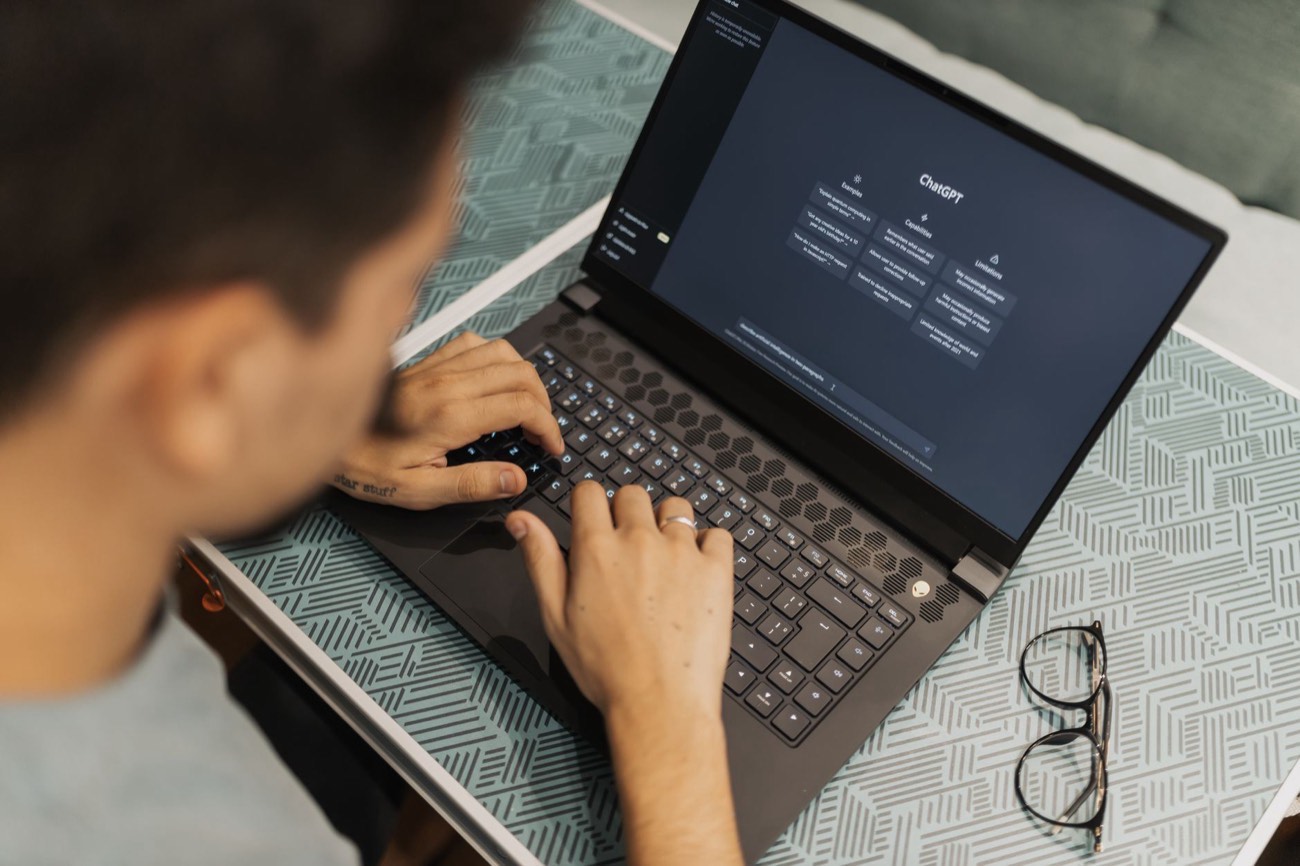
To make a presentation with AI, start with a tool built for it: Gamma or Canva’s Magic Design turn a topic or a pasted document into a full slide deck in under a minute. The fastest workflow is to write your outline first (ChatGPT is great for this), paste it into Gamma, let it generate the slides, then edit the text to be specific and swap the visuals for your own. AI handles the layout, headings, and first-draft wording so you skip the blank-slide problem. You still have to add real data, fix vague bullets, and rehearse. Budget 15 minutes with AI versus the hour or two a deck normally takes.
Building slides from scratch is the part of a presentation everyone dreads: choosing a layout, balancing text, finding icons, making it look intentional. AI now does the mechanical 80% of that in seconds. This guide walks through the exact workflow I use, which tools do which job best, and the mistakes that make an AI deck look cheap.
Which AI presentation tool should you use?
There are two kinds of tools, and picking the right one matters more than any prompt trick.
| Tool | Best for | How it works | Free tier? |
|---|---|---|---|
| Gamma | Speed; turning a doc into a deck | You type a topic or paste text; it generates every slide | Credit-limited |
| Canva Magic Design | Polished templates, brand control | Suggests full templates you fill in and edit | Yes, with limits |
| ChatGPT / Gemini | Writing the outline and speaker notes | Generates structured text you paste into any tool | Yes |
| PowerPoint Copilot | People already living in Microsoft 365 | Builds a deck inside PowerPoint from a prompt | Paid (Microsoft 365) |
My tested recommendation: use ChatGPT for the words and Gamma for the slides. That split gives you the best of both — a well-argued outline and a good-looking deck — without paying for the priciest all-in-one tool.
Step 1: Write the outline with ChatGPT first
The single biggest mistake is asking an AI tool to generate a deck straight from a one-line topic. You get generic filler. Instead, spend two minutes building a real outline. If you’re new to prompting, our guide on how to write AI prompts covers the fundamentals this relies on.
Here’s a prompt that works:
“Act as a presentation coach. I’m giving a 10-minute talk to [audience] about [topic]. My goal is for them to [desired outcome]. Create a slide-by-slide outline with 8–10 slides. For each slide, give me a title, three tight bullet points, and one sentence of speaker notes. Keep bullets under 8 words each.”
The under-8-words rule matters. It forces the AI away from paragraph-shaped bullets, which are the number-one giveaway of a lazy deck.
Step 2: Turn the outline into slides with Gamma
Copy your finished outline. In Gamma, choose “Paste in text,” drop it in, and pick a theme. Gamma reads your structure and builds one slide per section, adding layouts, icons, and spacing automatically.
- Paste your outline, not just a topic. Gamma respects the structure you give it.
- Pick a plain theme. Skip the flashy gradient templates for anything work-related; a clean theme reads as more credible.
- Generate, then review every slide. Gamma is fast but literal — it will happily keep a weak bullet you wrote.
Step 3: Fix the three things AI always gets wrong
An unedited AI deck has three tells. Fix these and yours looks human-made.
- Vague bullets. AI writes “Improve efficiency” where you mean “Cut invoice approval from 3 days to 4 hours.” Replace every abstract claim with a specific number or example.
- Fake or missing data. If the AI invented a statistic, delete it or replace it with a real one you can cite. Never present an AI-generated number as fact — see our guide on how to fact-check AI before you trust any figure on a slide.
- Generic stock imagery. Swap the default icons and photos for a screenshot, a chart of your own data, or a simple diagram. One real visual beats five decorative ones.
Step 4: Export and rehearse
Gamma exports to PowerPoint (.pptx) and PDF, or you can present straight from the browser. If your organization requires a specific template, export to PowerPoint and reapply your brand theme there.
Whatever you do, rehearse out loud once. AI can build the slides, but it can’t pace your delivery or catch that slide 6 doesn’t flow into slide 7. Reading the deck aloud surfaces those seams in five minutes.
A realistic time comparison
Here’s roughly how the AI workflow compares to building a deck by hand, based on a standard 10-slide talk.
| Task | By hand | With AI |
|---|---|---|
| Outline the argument | 20–30 min | 3 min |
| Build and format slides | 45–60 min | 2 min (generate) |
| Edit text and visuals | included above | 15 min |
| Rehearse | 10 min | 10 min |
| Total | ~90 min | ~30 min |
The savings come entirely from skipping manual formatting. The thinking and the editing are still yours — and that’s exactly the part that makes a presentation good.
Making the visuals actually good
The fastest way to spot an AI deck is its imagery: generic stock photos and decorative icons that say nothing. Strong presentations use visuals that carry information. Where AI can help:
- Turn data into a chart. Paste your numbers into a chatbot and ask, “What’s the clearest way to show this — bar, line, or table? Give me the data formatted for a chart.” Then build that chart in your slide tool.
- Simplify a busy slide. Describe a cluttered slide and ask, “How would you split this into two cleaner slides?” AI is good at spotting when one slide is doing two jobs.
- Draft a simple diagram. For a process or hierarchy, ask the AI to describe the boxes and arrows, then draw it yourself. A hand-made diagram beats any stock graphic.
The rule of thumb: one meaningful visual per slide beats a slide full of decoration. If an image doesn’t add information, cut it.
Writing speaker notes that help you present
Slides are for the audience; notes are for you. A common mistake is leaving notes empty, then reading the slides aloud — the fastest way to lose a room. Have the AI draft real notes:
“For each slide, write speaker notes as talking points, not a script. Two or three short prompts I can glance at, plus the one number or story I must not forget. Include a natural transition sentence into the next slide.”
Talking points keep you conversational; a full script makes you sound like you’re reading. The transition lines are the secret to a deck that flows instead of lurching from slide to slide.
When not to use AI for slides
For a high-stakes pitch, a board deck, or anything where the design carries the message, AI’s first draft is a starting scaffold, not a finished product. Use it to break the blank-page freeze, then rebuild the key slides deliberately. For a weekly team update or an internal training, the AI-plus-light-editing workflow is plenty.
If you’re already using AI at work, you’ll get more out of these related guides: how to use AI to summarize anything (great for turning a long report into a deck), our roundup of the best free AI tools, and ChatGPT prompts for work for more ready-to-use prompts.